.jpg)
How to upload a song to Spotify and Apple Music: A step-by-step guide
You cannot upload a song directly to Spotify or Apple Music. You upload it through a digital distributor, a company that delivers the song to the platforms and collects your royalties. You sign up with a distributor, fill out an upload form with the master file, cover art, and details, set a release date, and submit. Before the release, you request access to your artist profile on Spotify for Artists and pitch the song to editors. On the release day, you verify that the song has appeared on the correct profile, and after the release, you also request access to Apple Music for Artists.
It is worth knowing in advance what is done where, as this is where most beginners get confused. Spotify and Apple themselves do not have an upload screen for songs at all. The file, cover art, and release date are defined only with the distributor. In the artist interfaces (Spotify for Artists and Apple Music for Artists), you gain access to your profile, customize it, pitch the song to playlist editors, and verify that it has reached the right place.
In this guide, we will go through all the screens in order, first with the distributor and then on Spotify and Apple, using the names of the buttons and fields as they appear in the interface. We will demonstrate the distributor part using DistroKid, but you can work with any distributor you choose; the process is very similar, and in step 1, you will find a list of other distributors and what to compare between them.
What you need to prepare before you start
- Master file. FLAC or WAV in stereo, 44.1kHz or higher, and 24-bit if that is the original master. Use 16-bit only if a higher resolution version is unavailable. Do not convert the file yourself; the platform will do it for you.
- Audio levels. Spotify normalizes in the app to-14 LUFS. Keep the True Peak below-1 dBTP, and below-2 dBTP if the master is louder than -14 LUFS. Web players and external devices do not normalize, so the master needs to sound good even without it. If the difference between a mix and a master is still unclear, read our guide to mixing vs. mastering.
- Cover art. A square image with a 1:1 aspect ratio, sized 3000x3000 pixels in JPG and RGB color mode. This way, it meets the requirements for all three: Spotify accepts 640 to 10,000 pixels, Apple requires at least 1400x1400, and DistroKid at least 1000x1000. No URLs, logos, QR codes, prices, or references to stores.
- Metadata. All the written information about the song: song title, artist name exactly as you want it to appear, the real names of the writers and composers, producer name, genre, and language.
- Time. DistroKid recommends uploading about4 weeks before the release, and at least 3 weeks if you want to submit the song to Spotify's playlist editors.
The timeline in brief
The order in this guide follows the actual workflow. Here is how it looks relative to the release date:
- About 4 weeks before the release: Sign up with a distributor and upload the song (steps 1 through 3).
- A day to a few days after delivery: Request access to Spotify for Artists (step 4).
- At least 7 days before the release: Submit the song to editors and set up your profile (step 4).
- On the release day: Verify that the song has appeared on the correct profile (step 5).
- At least 5 business days after the release: Request access to Apple Music for Artists and set up your artist page (step 6).
- Whenever convenient: Register your rights with the relevant organizations in Israel (step 7).
Step 1: Choose a distributor and open an account
How to choose a distributor
A digital distributor is the bridge between your song and the platforms. They deliver your song to Spotify, Apple Music, and other services, then collect royalties on your behalf and transfer them to you. There are dozens of distributors today, each with its own payment model, tools, and service, but the core work is the same for everyone. Therefore, the process is also very similar: create a release, upload the file and artwork, fill in the details, choose a date, and submit.
In this guide, we have chosen to demonstrate the process using DistroKid, but this is just an example. You can work with any distributor that suits you. You will find the same steps with every distributor, sometimes under slightly different names.
A good starting point is Spotify's list of distributors. These are the distributors for independent artists listed there, in alphabetical order:
Apple also has preferred distributor requirements, which are worth knowing. When comparing distributors, pay attention to four things:
- Payment model. An annual subscription, a one-time fee per release, or a commission on royalties. There are also free plans that charge a commission.
- Future release date. Not every plan allows you to choose a date, and without that, it is difficult to submit to editors on time.
- Existing codes. If you already have an ISRC or UPC, check that you can enter them.
- Quick access to your profile. A distributor marked as "preferred" on Spotify's list provides automatic access to Spotify for Artists.
Terms and prices change from time to time, so check them on the distributor's website on the day you sign up.
Opening an account
- Open an account with the distributor and choose a plan. At DistroKid, the plans are Musician, Musician Plus andUltimate.
- Note the difference between the plans. On DistroKid, only the Musician Plus and Ultimate plans allow you to select a future release date and enter an existing ISRC. With the Musician plan, the song is uploaded as soon as processing is complete, making it difficult to plan a pitch to editors.
Step 2: Fill out the upload form
Go to the upload form at distrokid.com/new. We will go through the fields in the order they appear on the form. If you have chosen a different distributor, you will find the same fields there, sometimes with slightly different names or in a different order.
Platforms and artist details
- InServices , select Spotify and Apple Music, and deselect any services you do not want.
- InNumber of songs , select 1 for a single.
- InHas this single been previously released? , select No.
- InArtist/band name , enter the name exactly as it should appear everywhere.
- InArtist already in Spotify / Apple Music / YouTube Music / Instagram / Facebook? (Already have a profile?) For your first release, select No, and a new artist profile will be created for you. If you already have a profile, select it here. Otherwise, the song might end up on another artist's profile with the same name.
Release date
- InRelease date (Release date) Select a date from the calendar. After choosing a future date, you can set theRelease Time release time for Spotify, and inTime synchronization choose whether the song will be released according to each listener's local time or simultaneously worldwide.
Cover art, language, and genre
- InAlbum cover (Cover art) Upload the JPG file.
- inLanguage (Language), select the song's language. According to DistroKid, the language should match the language in which the song titles are written. If your language is not on the list, select English and write the title using Latin transliteration.
- inPrimary genre (Primary genre), select the closest genre, and inSecondary genre you can add a second genre. Double-check: once uploaded, you cannot change the genre without deleting the release and uploading it again.
Song details, file, and credits
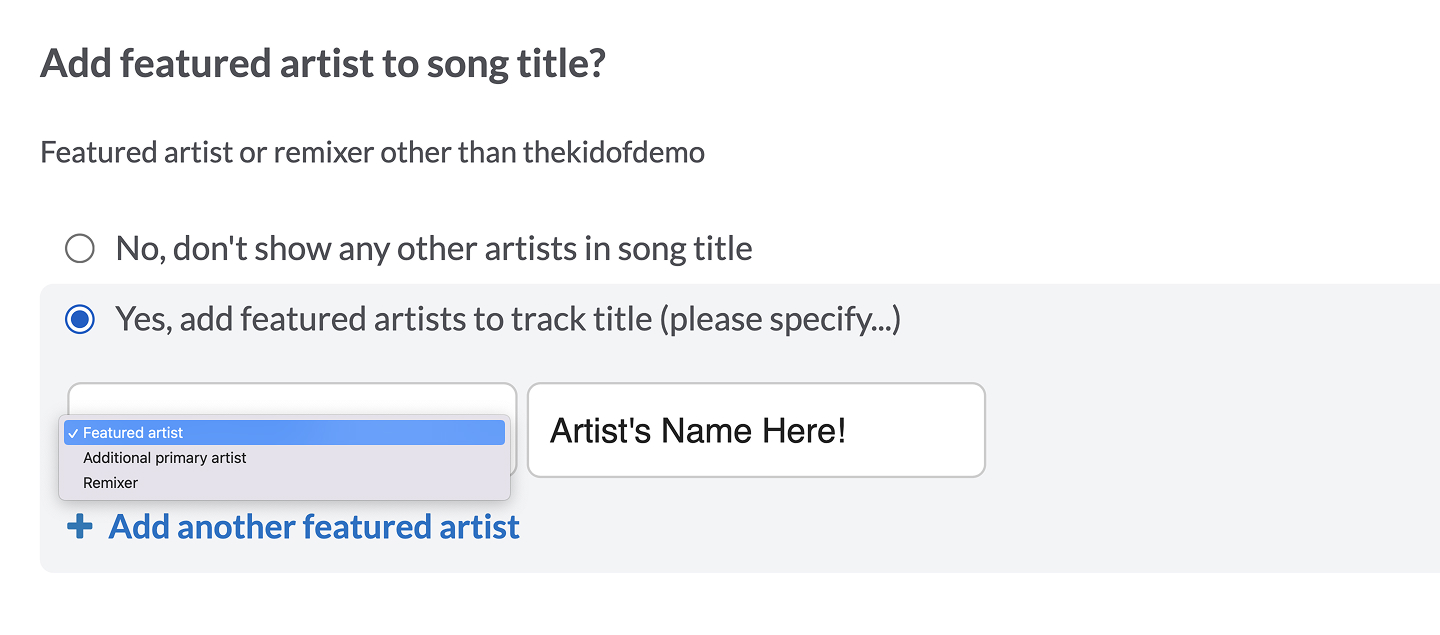
- inSong title (Song title), write only the name, without "Remix" or names of featured artists. These have separate fields: Add featured artist to song title? for a featured artist, andAdd "version" info to song title? for a version such as Live or Acoustic.
Source: DistroKid Help Center
- inAudio file Upload your master file. DistroKid accepts WAV, FLAC, MP3, M4A, AIFF, and WMA, and recommends WAV or FLAC.
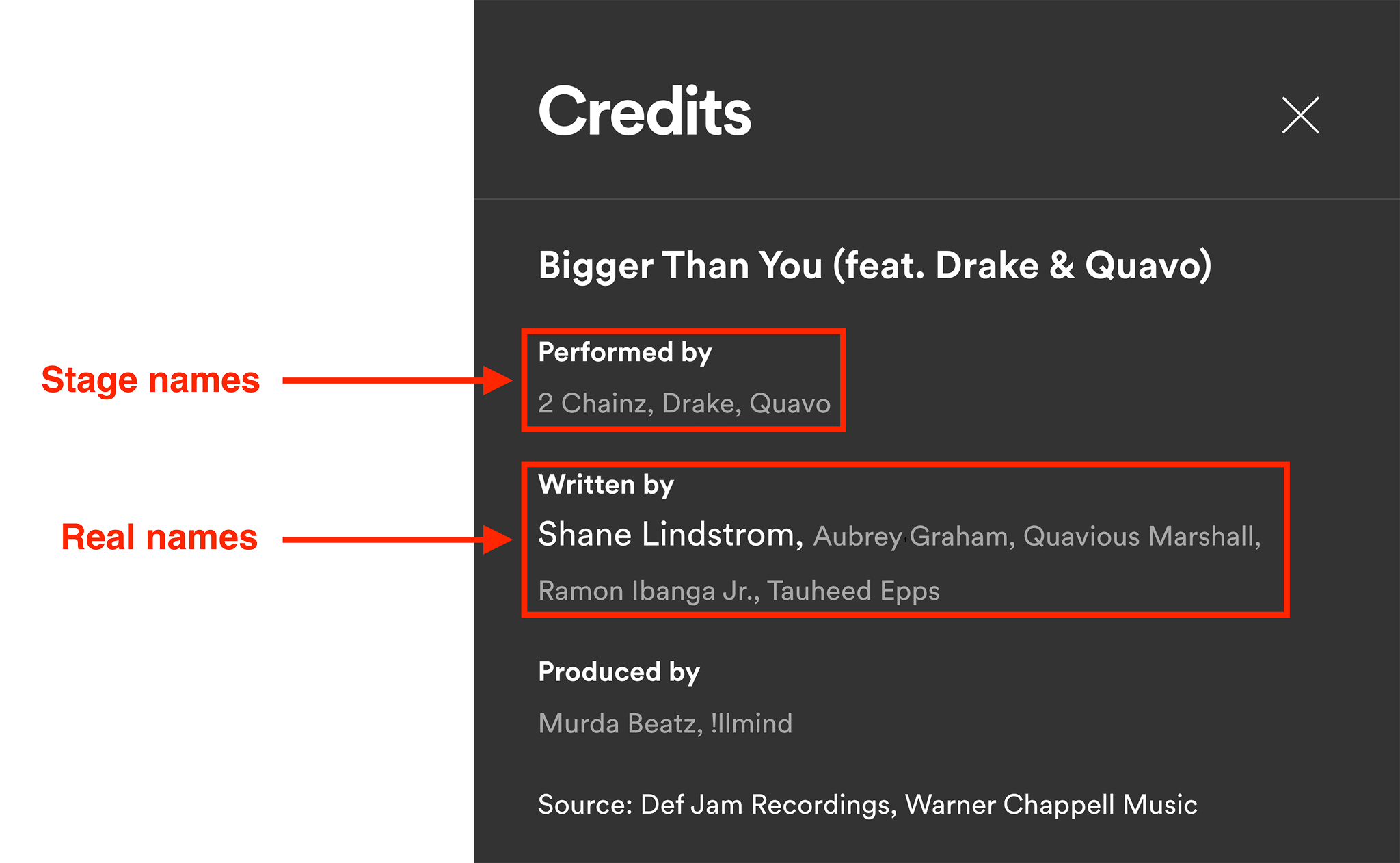
- inSongwriter Select whether this is an original song or a cover. For an original song, enter inSongwriter(s) real name the real names of the songwriters, not stage names. A cover requires a license, and according to DistroKid, this adds up to 14 business days.
Source: DistroKid Help Center
- inExplicit lyrics select if the song contains profanity, sexual content, or violence. InInstrumental? indicate if the song is an instrumental.
- inApple Music Additional Requirements add at least one performer credit and one producer credit. Apple will not accept the song without them.
ISRC and UPC
An ISRC is a 12-character code that identifies a specific recording, not the composition itself, and each version (radio, acoustic, remix) has its own ISRC. A UPC is the barcode for the entire release.
- If you don't have an ISRC, you don't need to do anything. DistroKid issues an ISRC and UPC automatically and for free.
- If the recording already has an ISRC, click on already got an ISRC code? next to the file field and enter it (only for Musician Plus and Ultimate plans). You cannot enter an existing UPC on DistroKid; it issues a new one for every release.
Submit
- inExtras there are optional add-ons. You can skip these.
- Check all the boxes underImportant checkboxes (mandatory) and click Continue.
Step 3: What happens after submission
The release is reviewed by the distributor and then delivered to each platform, which performs its own check. At Apple, for example, a quality control team reviews the content. According to DistroKid, after delivery, the song usually appears on Spotify within one to two days and on Apple Music within one to seven days, though it can sometimes take up to two weeks. CD Baby estimates a similar timeframe, between two days and two weeks.
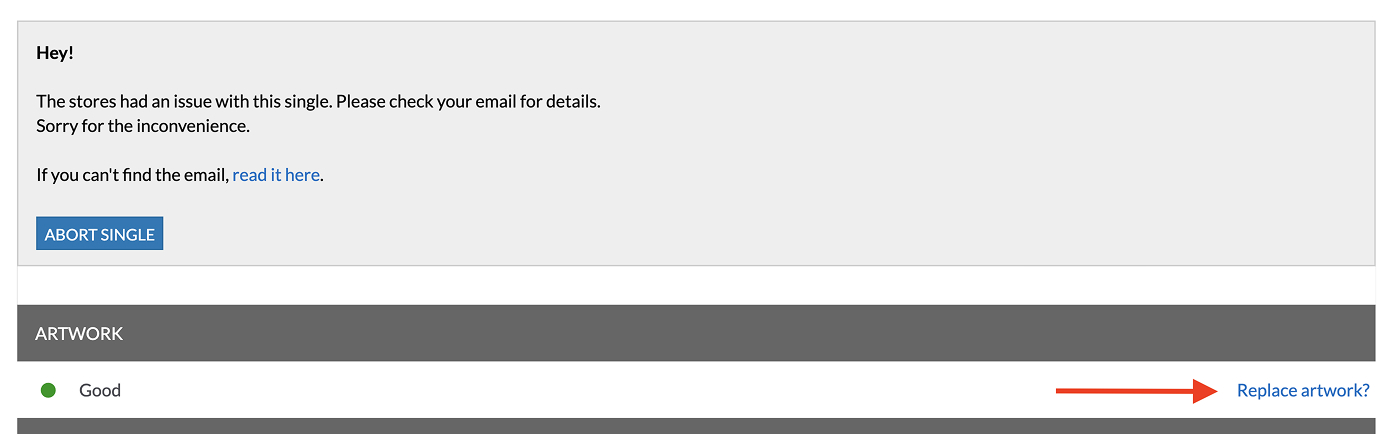
- Track the status on your dashboard at distrokid.com/mymusic. A green circle means the release has been delivered, yellow means it is still being processed, and red means there is an issue preventing delivery.
- If the circle is red, look for an email from DistroKid detailing the issue. Usually, you will need to delete the release and upload it again. If the issue is with the artwork, you can replace it on the release page via Replace artwork.
Source: DistroKid Help Center
Step 4: Before the release, on Spotify for Artists
Spotify for Artists is Spotify's free interface for artists, located at artists.spotify.com. You can log in with a regular Spotify account, even a free one. You don't upload songs here, but this is where you gain access to your profile, customize it, and pitch your song to editors.
Requesting access to your artist profile
There are two ways to gain access, and the choice between them depends on whether you already have a song live on Spotify.
- You already have a song live: The fastest way is through your distributor. Distributors listed on Spotify’s recommended list provide automatic access. With DistroKid, you can go to distrokid.com/spotify to get access without manual review.
- This is your first release: This method allows you to gain access even before your song is released, which is important because pitching to editors is only possible before the release date. The request is reviewed manually and takes a few days, so start the process as soon as your distributor has submitted the song.
Steps for a direct request on Spotify:
- For a first release, you first need your artist profile code (Spotify URI). Once the song has been submitted, go to the Spotify URI Looker-Upper tool at distrokid.com/uri/spotify, select your release, and click What's the Spotify URI?. Copy the URI that appears under Artist. According to DistroKid, this can take a few days. If using another distributor, request the URI from their support team.
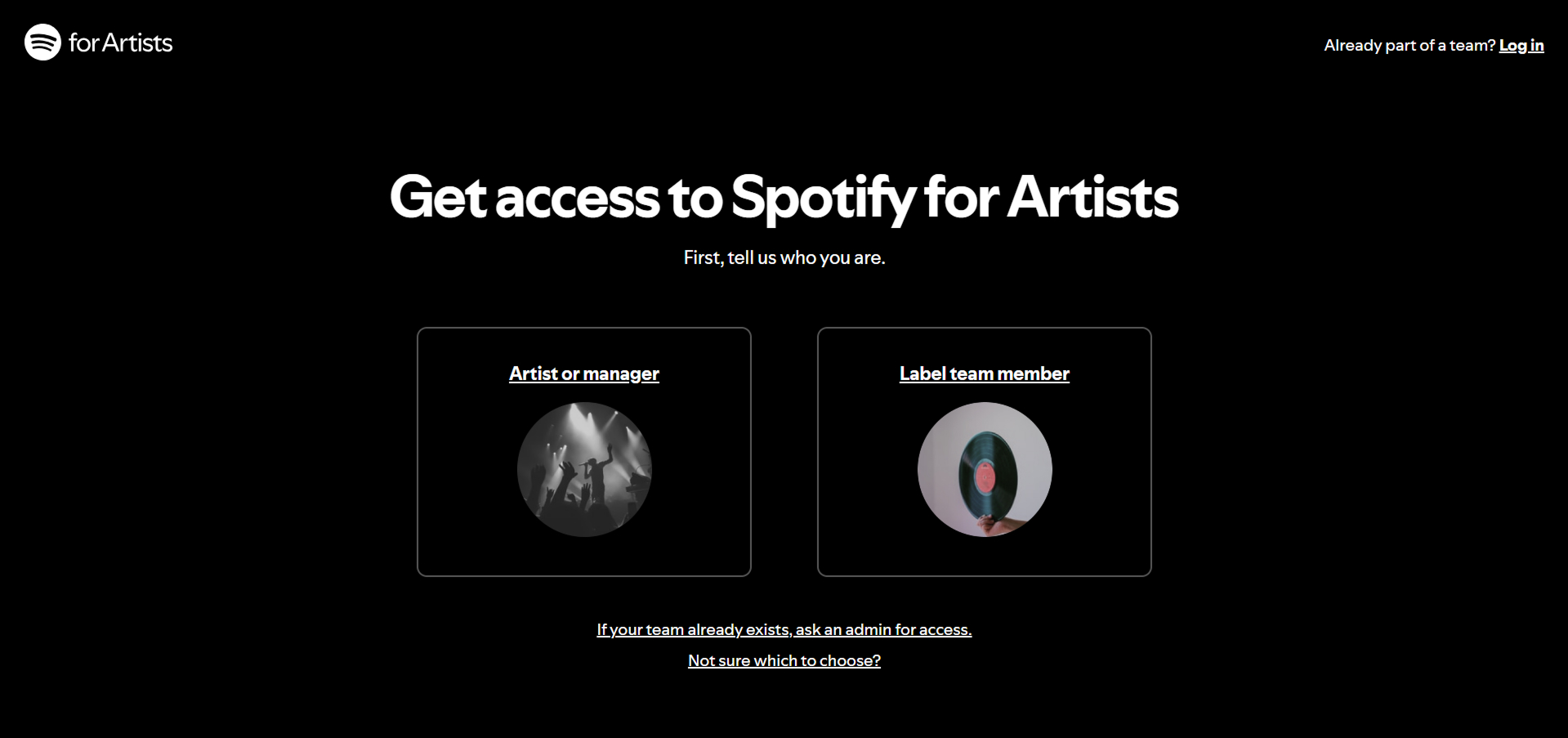
- Go to artists.spotify.com and click Get access . On the Get access to Spotify for Artists screen, select Artist or manager .
Source: Indiefy Support Guide
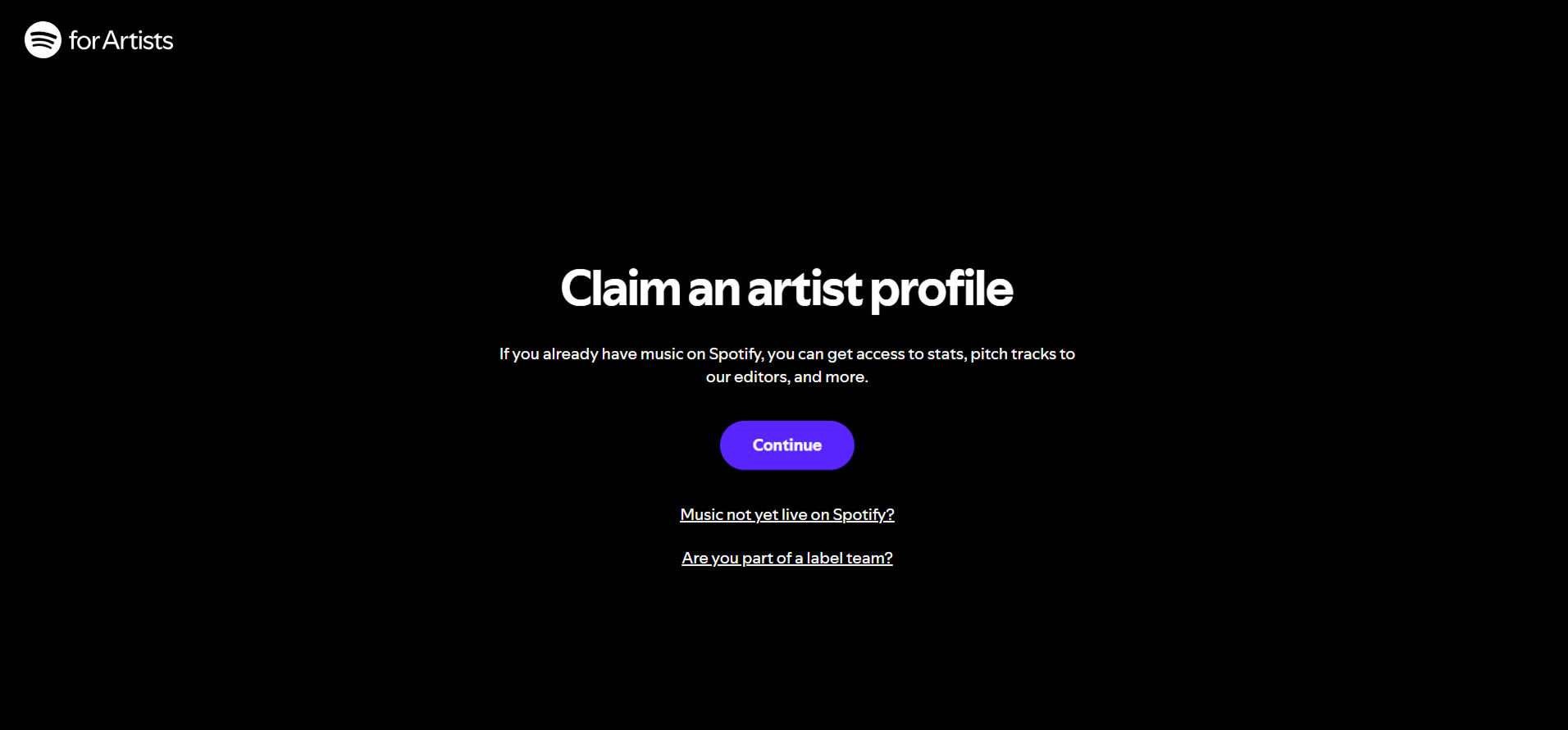
- On the Claim an artist profile (Claim artist profile) click Continue. If your song is not yet live, click the link Music not yet live on Spotify? below the button.
Source: Indiefy Support Guide
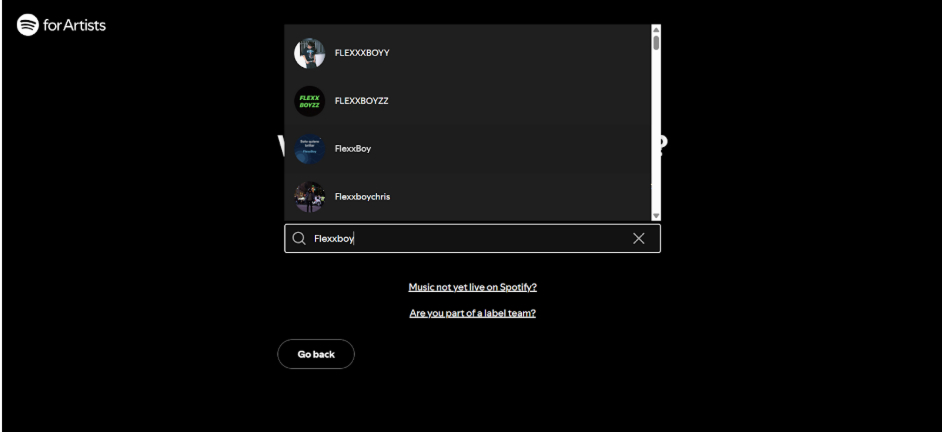
- Log in with your Spotify account. Then, search for the artist's name or paste the URI into the search bar and select your profile from the list. Note: Many artists have similar names, so make sure it is really you.
Source: Indiefy Support Guide
- Fill in the requested details: a contact email address (where you will receive a verification code), your first and last name, and your country.
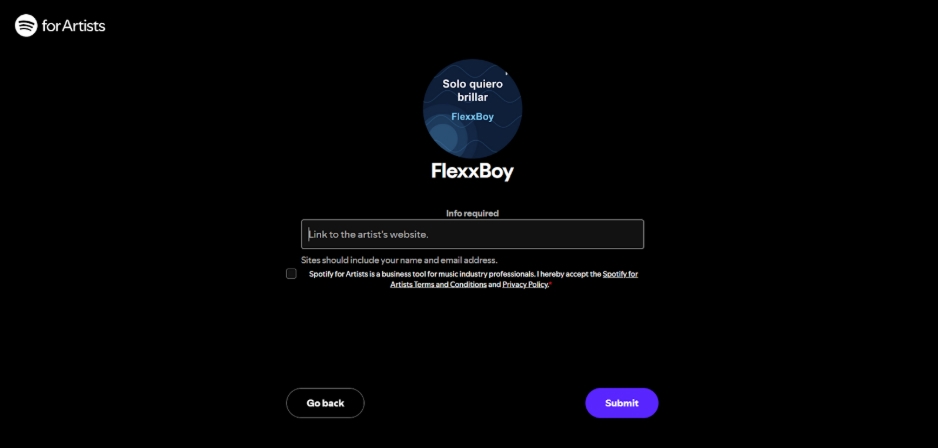
- In the Info required field, paste a link to your website or social media profile that displays your name and email address. Check the terms and conditions box and click Submit.
Source: Indiefy Support Guide
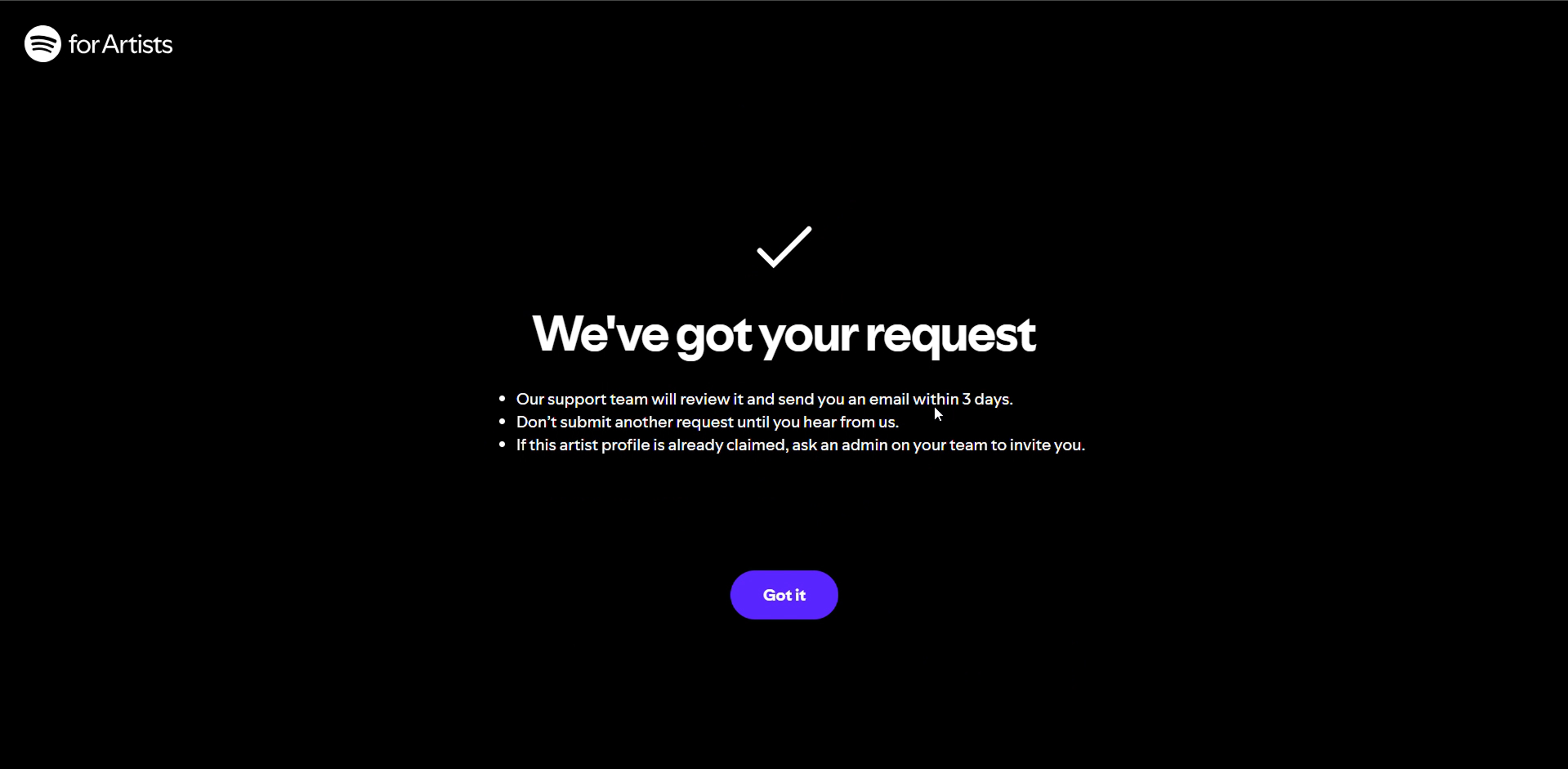
- The screen will appear We've got your requestA Spotify team member will manually review your request and send an email within a few days. Please do not submit another request in the meantime.
Source: Indiefy Support Guide
Finding the track and submitting to editors
This part is time-sensitive, so do it first. The submission must be received at least 7 days before the release date.
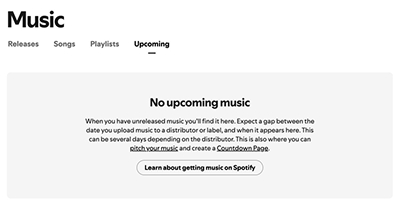
- Once you have access, go toMusic and then toUpcoming . Your upcoming track will appear there, usually about 48 hours after your distributor has delivered it. If the tab is empty, the track hasn't arrived yet. If a long time has passed, check with your distributor to ensure it was sent to the correct profile. If a release appears there that isn't yours, click the options icon next to it and select Report incorrect release.
Source: Ditto Music
- Select the track and fill out the editorial submission form. Choose up to 3 genres and add details about the song and the recording. The more accurate the details, the easier it is for editors to understand what they are listening to.

Source: Spotify for Artists

Source: Spotify for Artists
- Review your details on the final screen and submit. You can edit your submission up until the release date.
A few rules: submitting at least 7 days before the release date adds your track to the Release Radar, the weekly playlist for your followers. You can submit one track at a time; compilations or tracks where you are a featured artist are not eligible, and once a track is released, it is no longer available for submission. Submission does not guarantee placement on a playlist.
Profile Design
Once your submission is sent, tidy up your profile. It’s the first thing listeners and editors see, so it’s worth having it ready before release day.
- At artists.spotify.com, click View profile .
- Click the edit icon above your Monthly Listeners count.
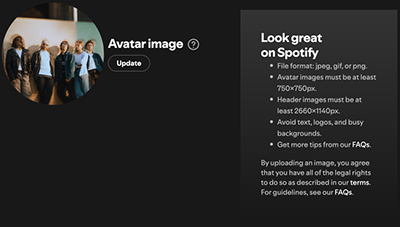
- Under Avatar image , click Update and upload a photo. Under Header image , you can also upload a wide banner image, but only from a computer, not the mobile app.
Source: Ditto Music
Spotify's image requirements: JPEG, PNG, or GIF, with a profile picture size of 750x750 pixels At least, a header image size of 2660x1140 at least, and up to 20MB. No text, advertisements, busy backgrounds, or promotion of a show or album.
Step 5: Checking on release day
- In Spotify for Artists, on release day, the song moves fromUpcoming to Releases andSongs under Music.
- Check for the song in the apps themselves, Spotify and Apple Music, and open your artist page. You don't have access to Apple yet at this stage, so check only in the app.
- Make sure the latest release on the page is yours. If not, your song has been added to the profile of another artist with the same name.
- In that case, go to the Fixer tool at distrokid.com/fixer and select My music is on the incorrect page. If someone else's music has been added to your page, select Someone else's music is incorrectly on my page. The fix takes a few days and sometimes a few weeks. If using a different distributor, contact their support with the link to the song and the artist page.
- If the song doesn't appear at all, check the status in DistroKid. It may still be processing, the cover license may not be complete, or the platform may not have added a new artist name to the search yet.
Step 6: About a week after release, on Apple Music for Artists
Apple Music for Artists is Apple's free interface for artists, available at artists.apple.com or via the iPhone app. You don't upload songs here either, but once you gain access, you can customize your artist page, add lyrics, and view data you won't find anywhere else: how many people are listening to you right now, from which cities and countries, how many times your songs have been searched for on Shazam, and which radio stations have played them.
Requesting access to your artist page
Apple only allows you to request access once your song has been live for at least 5 business days. Only the artist or their manager can request access, and only for a release where they are the primary artist.
- In the Apple Music app, open your artist page or your song, tap More (the three dots), then Share andCopy Link.
- Go to artists.apple.com and sign in with your Apple Account.
- Click Request Artist Access and paste the link into the Find an Artist.
- field. Select one of your releases to confirm it is the correct profile.
- Select a role: Artist, Manager or Label Rep, and fill in the remaining fields. To speed up the verification process, connect your social media accounts or distributor account when prompted.
- Until the request is approved, the status will be Pending, and updates will be sent via email.
- If more than 10 business days have passed and you haven't received a response, check the email inbox associated with your Apple account. If you still don't see anything there, contact Apple support via the "Contact Us" link at artists.apple.com.
- The first person to request access—whether the artist or the manager—is granted Administrator permissions. They can then add other team members, such as a manager or label representative.
DistroKid also has a shortcut for the request at distrokid.com/am4a. Other distributors sometimes offer similar shortcuts; for example, CD Baby has one under "Tools and Promotion."
Designing your artist page
Once access is approved, everything can be found in the Artist Content section.
- Log in and click on the artist's name.
- Click Artist Content then Artist Page .
- In the Image section, click Edit, select an image file, adjust the crop, and click Submit. Apple reviews the image, which can take up to 5 business days. The image will be updated on both Apple Music and Shazam.

Source: CD Baby DIY Musician
- On the same page, you can also add a logo, choose a button color, pin a release to the top of the page, and fill in details like your hometown. Instead of a biography, you can answer Q&A questions, which are displayed on your Apple Music page.
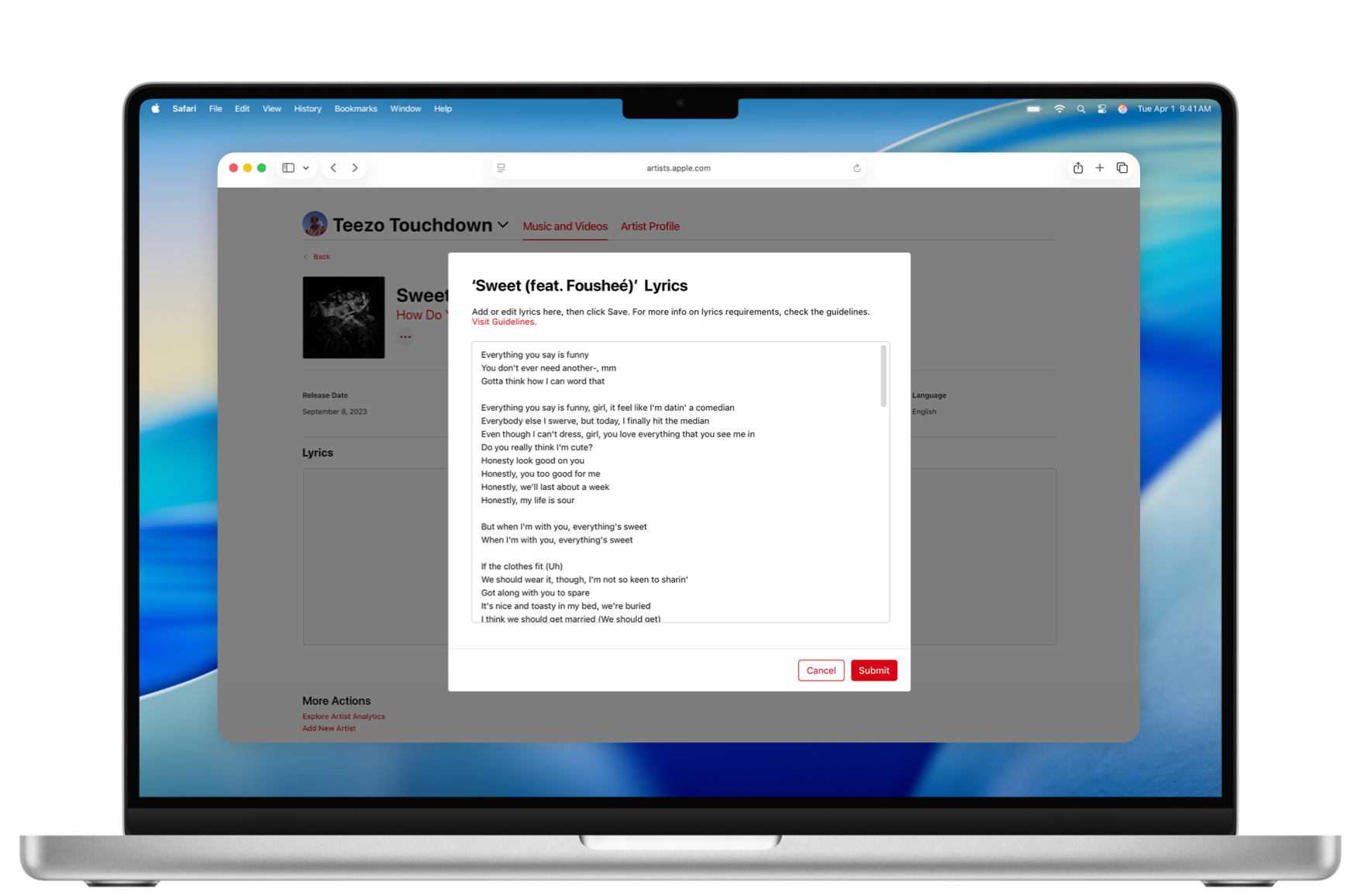
- InMusic and Videos , you can see all your songs on Apple, as well as upcoming releases. To add lyrics to a song, click on it and add or edit the lyrics.
Source: CD Baby DIY Musician
Promotion and tracking in the app
The Apple Music for Artists app for iPhone (requires iOS 16 or later) includes several additional tools worth getting to know from day one:
- Promotion: You can create promotional images and Linkfire links for songs, albums, music videos, upcoming releases (pre-adds), and milestones, and share them directly to Instagram, Facebook, Messages, and email.
- Real-time listeners: The Listening Now widget shows you how many people are listening to you right now.
- Shazam and Radio: You can view your song's position on Shazam charts by country or city, as well as its airplay on radio stations around the world.
Step 7: Registering rights and royalties in Israel
Uploading to Spotify does not register you with any rights organization. Several organizations operate in Israel, each collecting royalties for different rights. This is only a general overview; please check the binding terms on each organization's website.
- ACUM. Represents creators: composers, lyricists, arrangers, and publishers. To join, you need a work that has had commercial use in the last three years, such as streaming plays, according to the criteria on their website.
- Eshkolot. The royalty collection society for performing artists, including singers.
- AILAM. Represents musicians and conductors for instrumental performances recorded in Israel. Joining requires scheduling an appointment in advance.
- The Israeli Federation of Phonograph Record Industry. Represents record producers, i.e., the owners of the recordings. If you funded and produced the recording yourself, this might be you. Contact details can be found in the IFPI list.
Mistakes that delay or disqualify a release
- Cover art with prohibited text. URLs, social media logos, QR codes, or prices on the cover art are grounds for rejection.
- Low-quality or duplicated cover art. Blurry images, artificially enlarged images, or using the same cover art for multiple releases.
- Song titles with extra information. Including "feat" or "Remix" in the song title instead of using the designated fields.
- Inconsistent artist names. A slight difference in spelling creates a new profile or leads to someone else's profile.
- Stage names instead of real names In the songwriters field.
- Last-minute uploads. Uploading less than 4 weeks in advance increases the chance that the song won't be live on all platforms on your planned date, and less than 7 days will exclude it from Release Radar.
- Master files that don't meet requirements. MP3 files instead of WAV or FLAC, or a master that is clipping because the True Peak is too high.
A master ready for distribution
All these steps assume you have a finalized master: in the correct format, at a volume suitable for normalization, and without distortion. This should be done before you start the upload form. AtShtuvia's mix and master studios you work in a self-service environment, without an engineer and without time pressure, in a 12-hour session for a fixed price of 240 NIS to 340 NIS, depending on the studio. The studios in Tel Aviv and Haifa are open 24/7, and you just bring your laptop and the software you work with.
FAQ
Can you upload a song to Spotify without a distributor?
No. Spotify tested a direct upload feature but shut it down on July 30, 2019. In June 2026, a beta version for direct video uploads—such as music videos and performances—was launched, but songs can still only be uploaded through a distributor or record label.
How long does it take for a song to be uploaded to Spotify?
According to DistroKid, once a distributor delivers a song, it typically appears on Spotify within one to two days, and on Apple Music within one to seven days. To set a release date and have enough time to pitch to editors, upload about four weeks in advance.
How much does it cost to release a song to Spotify?
Access to Spotify for Artists is free, and the main cost comes from the distributor: this could be an annual subscription, a one-time release fee, or a commission on royalties, depending on the provider. On top of that, there are the costs of production, mixing, and mastering.
Do I need to register with ACUM to release a song?
No, uploading to Spotify does not depend on registration. However, if you wrote or composed the song, ACUM is the organization that collects royalties for your work in Israel, and they have specific membership criteria detailed on their website.
How can you tell who the distributor of a song on Spotify is?
The song credits include a "Source" line with the name of the label or source. For independent releases, this is usually a name automatically generated by the distributor. With DistroKid, for example, it consists of a number followed by "DK Records."